Microsoft Entra ID
Microsoft Entra ID, formerly known as Azure Active Directory (Azure AD)
User authentication
Configuring Microsoft Entra ID
- Open the Microsoft Entra admin center and select the directory to use for single sign-on.
- Navigate to Enterprise apps
- Click New application and then Create your own application.
- Pick a name for the Kpow instance that you are securing and select the Integrate any other application you don't find in the gallery (Non-gallery) option.
- You should now be in the dashboard for the enterprise application for Kpow.
- Go to Manage > Single sign on, select SAML as the single sign-on method.
Basic SAML configuration
- Identifier (Entity ID): Set this to a suitable name for the instance you are securing, e.g.
Kpow-UAT-1. - Reply URL (Assertion Consumer Service URL): The
/samlendpoint for your Kpow instance, e.g.,https://kpow.corp.com/saml - Leave the other fields blank
SAML certificates
Download the Federation Metadata XML file.
Assign users and/or groups
Assign users and/or groups to grant them access the Enterprise application, otherwise they'll receive an error after signing-in to their directory account rather than be redirected to your Kpow instance:
- Open the Microsoft Entra admin center and select the directory
- Navigate to Enterprise apps and select the Enterprise application created above
- Navigate to Manage > Users and groups and click Add user/group and complete the steps there
Product configuration
Add the following configuration variables and start Kpow:
AUTH_PROVIDER_TYPE=saml
SAML_RELYING_PARTY_IDENTIFIER=[Identifier (Entity ID)]
SAML_ACS_URL=[Reply URL (Assertion Consumer Service URL)]
SAML_METADATA_FILE=[Path to downloaded Federation Metadata XML]
Kpow will now authenticate users with Microsoft Entra ID.
User authorization
See the guide to Role Based Access Control for full configuration details.
Using Entra groups for RBAC
Follow the guide to Add group claims to tokens for SAML applications using SSO configuration
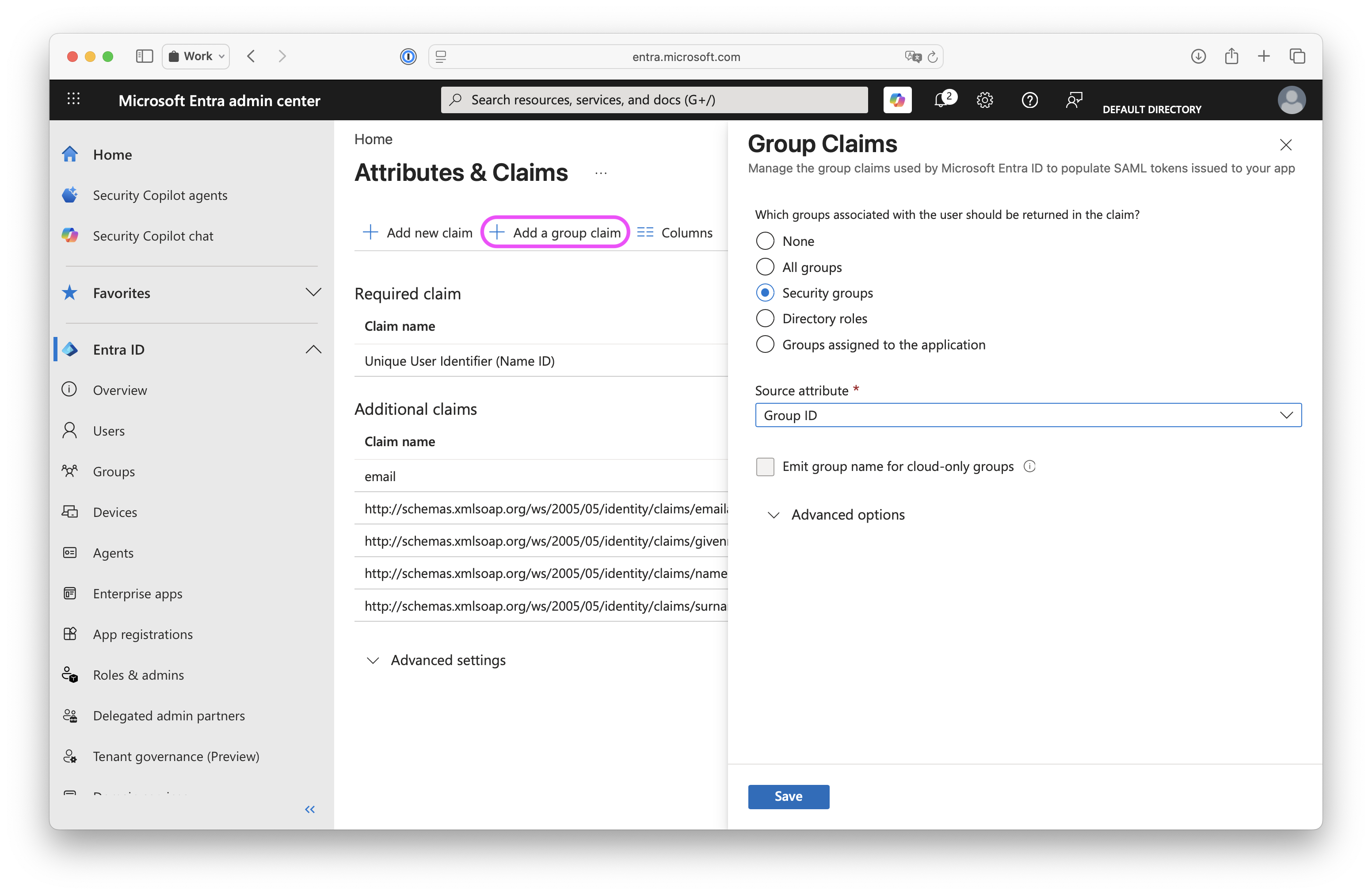
Then set the role mapping in your RBAC configuration to:
saml:
  role_field: "http://schemas.microsoft.com/ws/2008/06/identity/claims/groups"
Entra groups overage claim
Entra's SAML token "groups" claim has a limit of 150 groups, after which a groups "overage" claim replaces the standard groups claim.
If the maximum number of Entra groups for any of your Kpow users exceeds 150, you'll need to create OAuth 2.0 client credentials for the Entra Enterprise app, grant it extra API permissions, obtain your directory's Tenant ID, and update your Kpow configuration
Create OAuth 2.0 client credentials
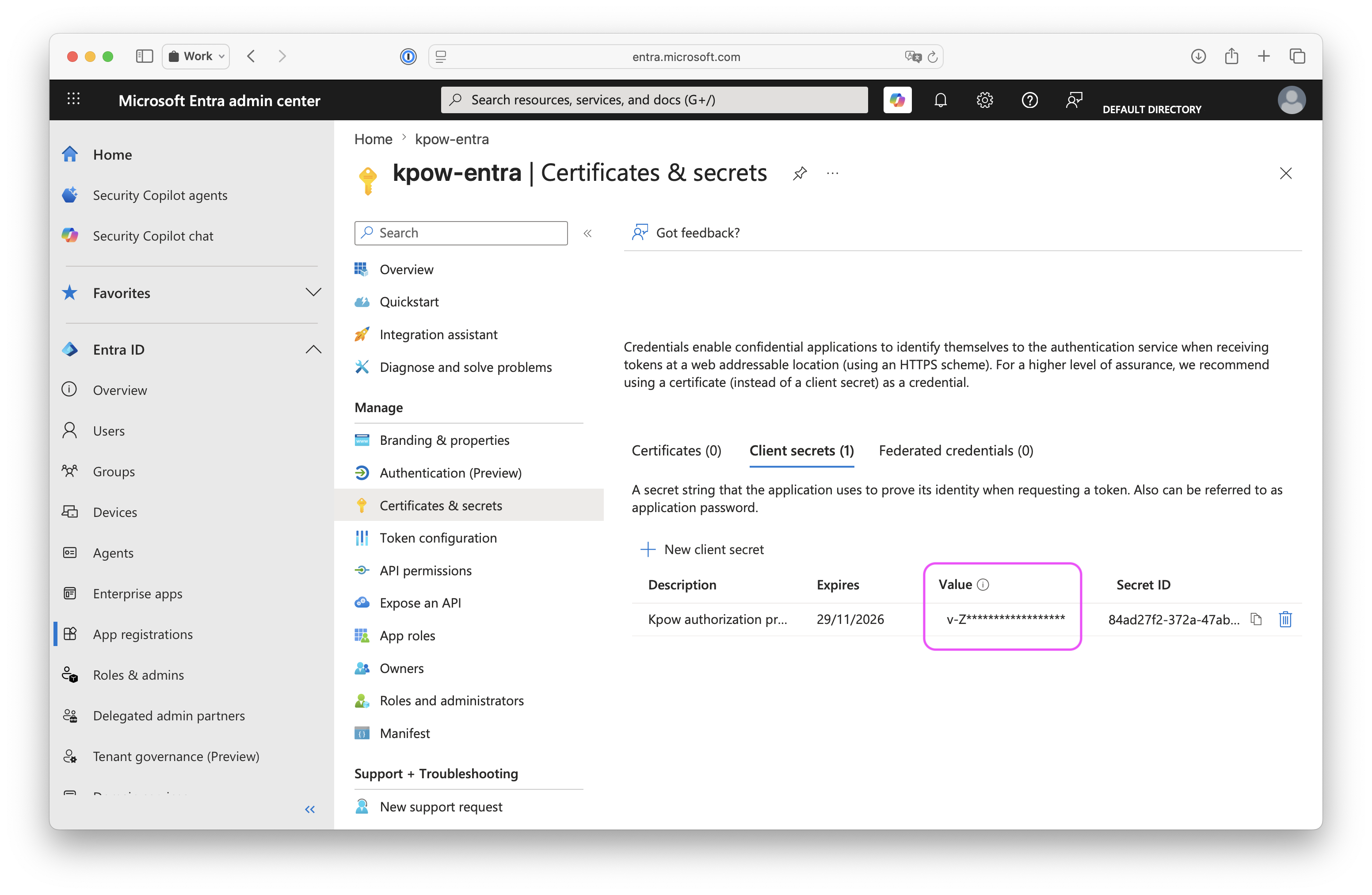
Follow the guide to Add a client secret to your Enterprise app, ensuring you copy the client secret's value (not ID)
Add API permissions
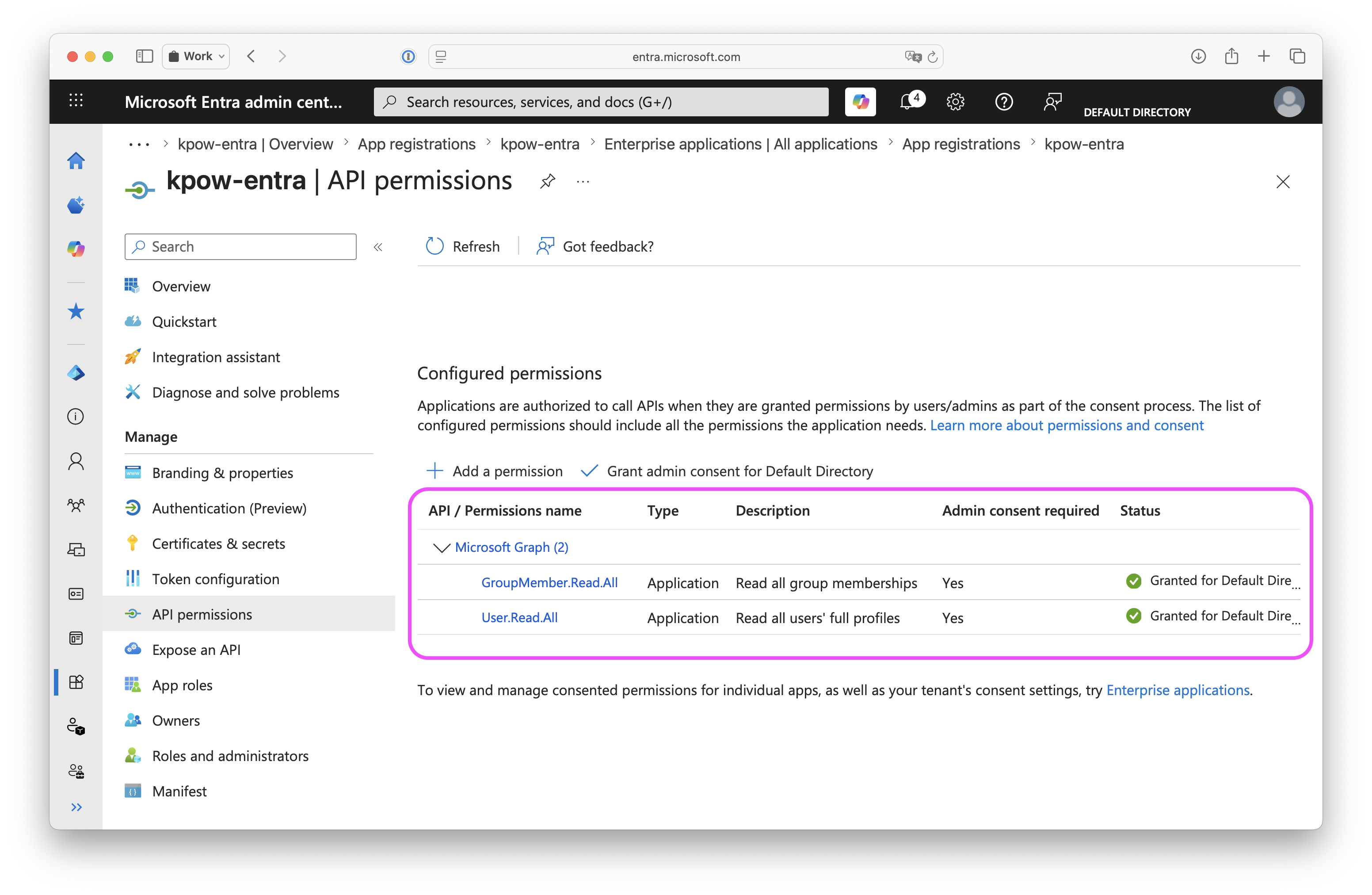
Follow the guide to Add permissions to an application to add these Microsoft Graph API permissions:
User.Read.AllGroupMember.Read.All
Ensure you also grant consent for the added permissions
Obtain tenant ID
Follow the guide to finding your Microsoft Entra tenant ID
Switch to the saml-entra authentication provider
Change to AUTH_PROVIDER_TYPE=saml-entra and provide values for MICROSOFT_GRAPH_CLIENT_ID,
MICROSOFT_GRAPH_CLIENT_SECRET, and ENTRA_TENANT_ID as described below:
# NB Change from saml → saml-entra
AUTH_PROVIDER_TYPE=saml-entra

SAML_RELYING_PARTY_IDENTIFIER=[As previously configured]
SAML_ACS_URL=[As previously configured]
SAML_METADATA_FILE=[As previously configured]

MICROSOFT_GRAPH_CLIENT_ID=[Application (client) ID from the App registrations entry]
MICROSOFT_GRAPH_CLIENT_SECRET=[Client secret value from the Certificates & secrets entry]
ENTRA_TENANT_ID=[Tenant ID]
# Whether to return only security enabled groups (defaults to true)
ENTRA_SECURITY_ENABLED_ONLY=true
Using Entra assigned roles for RBAC
-
Follow this Microsoft guide to populate
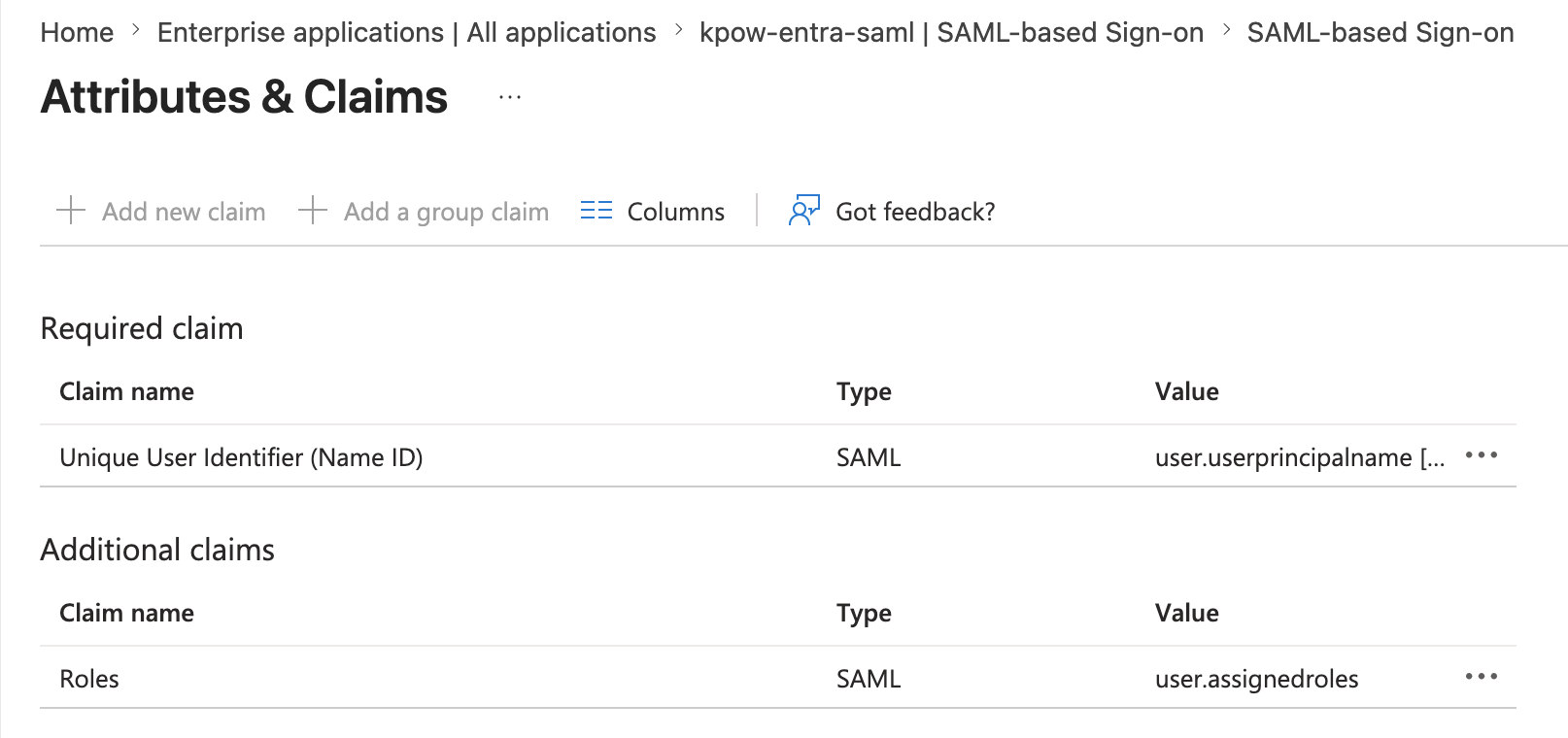
user.assignedrolesIn your Enterprise Application, navigate to Single sign-on > Attributes & Claims > Edit: -
Required Claim: Set
Unique User Identifier (Name ID)touser.userprincipalname -
Select Add new claim, set the Name to
Roles, leave Namespace blank, and set the Source attribute touser.assignedroles
Assign users to roles
Navigate to Users and groups, select a user, click Edit assignment, and assign the appropriate role.
Note: Microsoft Entra ID does not pass the default role (User) as an assigned role in the SAMLResponse.