Training guide
Follow the step-by-step instructions in this guide to learn how to search for data in Kafka with Kpow.
Click the example link in each step to view the query in our live demo environment and experiment with test data.
Accessing the Data Inspect UI
To access the Data Inspect UI, choose the Data option in the primary menu within Kpow.
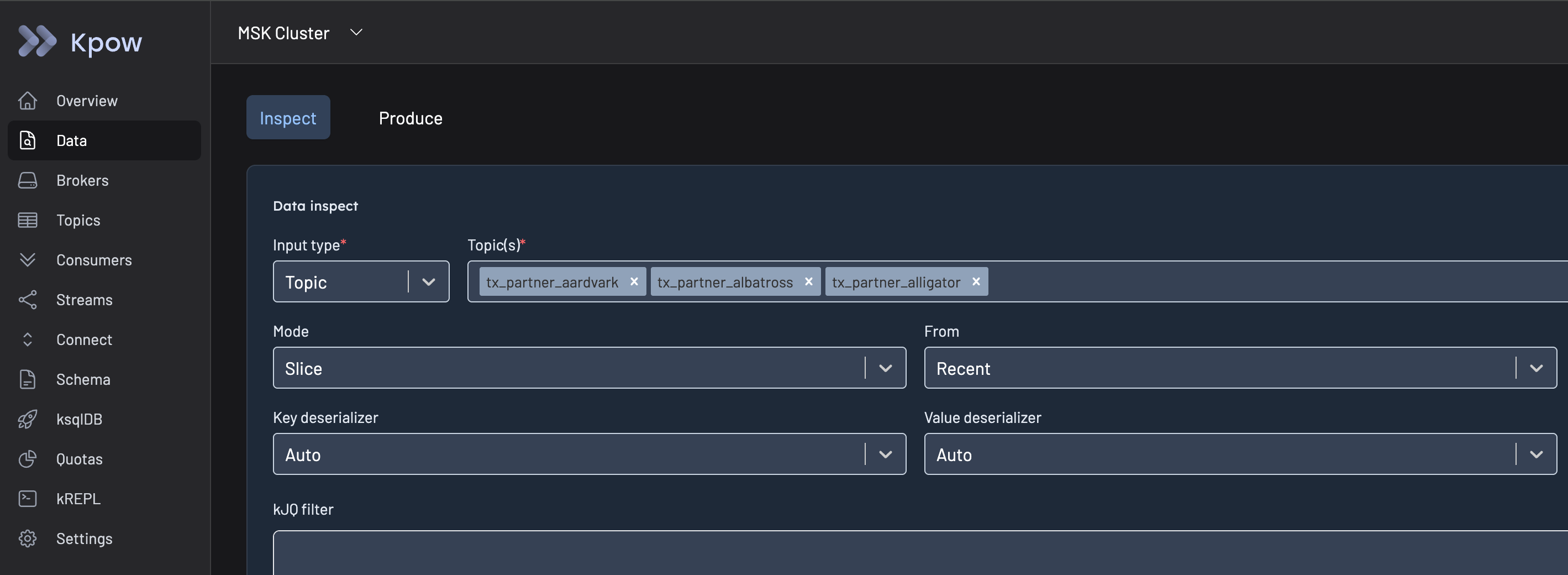
Search basics
See Data Inspect: Usage documentation for a full description of each query form field.
To reset the form to its default state, click the Clear form button in the top-right corner.
Search recent messages by topic(s)
Example: Search recent messages by topic(s)
The most popular query by users of Kpow is simply to look for recent messages in one or more topics.
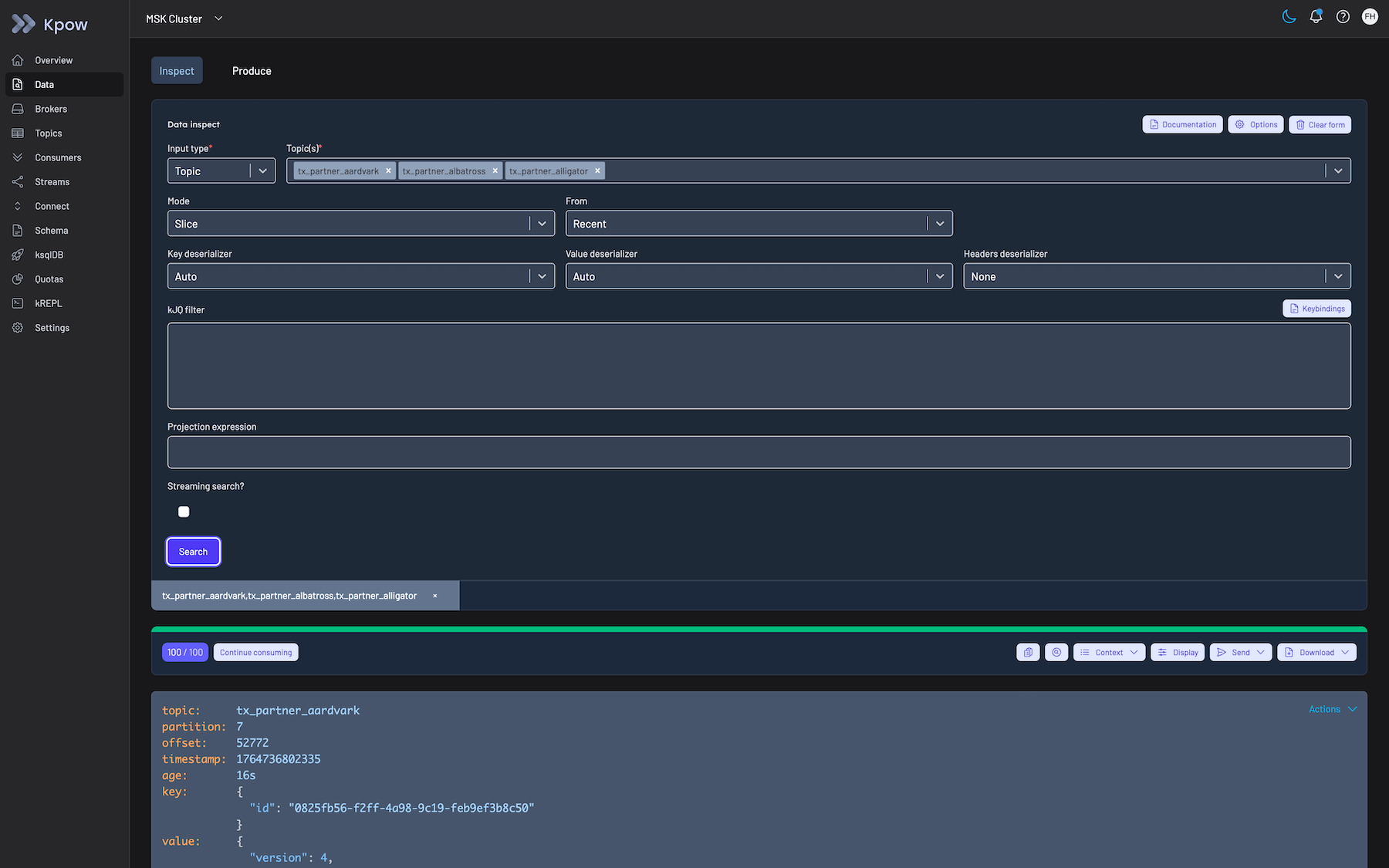
Simply chose the topics you would like to search by adding them to the Topic(s) form field, then click Search.
Form Fields Set
Topic(s): <Select one or more topics to query>
Set the Topic(s) field to tell Kpow which topic(s) to search for recent messages. Leave every other form field to its
default setting.
With Mode: Slice set Kpow reads all topics from a point in time forwards, sending results back to the UI for you
to view. In this case From: Recent means that Kpow reads the most recent 100 messages from your topic(s).
When Search is clicked, you see results below the search form, with some search context just above the results.
The 100/100 text means that Kpow scanned 100 records and returned 100 results (as you had no filter applied). If you
hover over that text you see a more detailed description of the number of partitions queried and how long it took
to execute the search in milliseconds.
Search recent messages by topic regex
Example: Search recent messages by topic regex
Kpow can search groups of topics that match a regex, rather than specifying every topic to search.
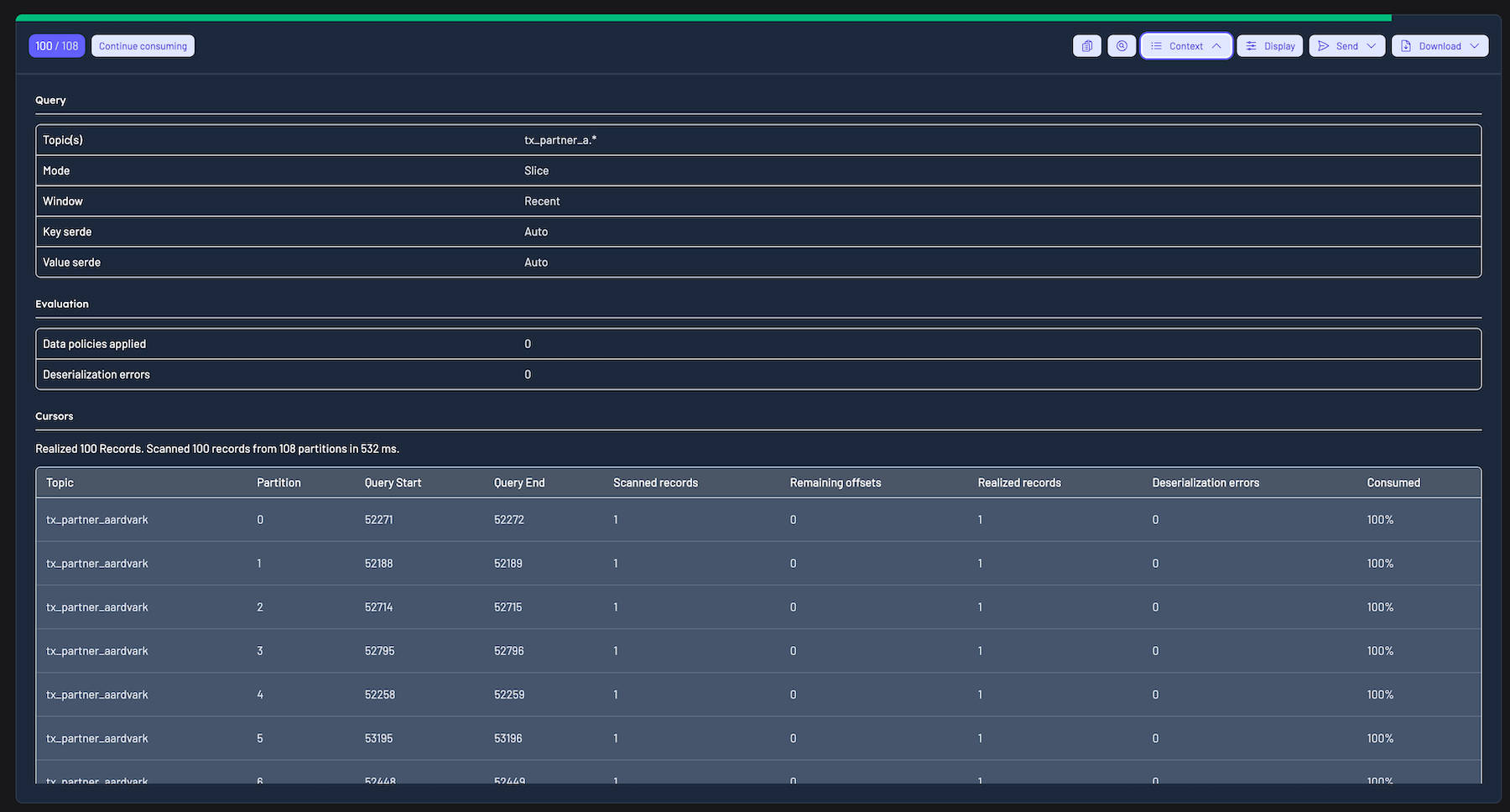
In this example we search topics whose name matches the pattern tx_partner_a.*.
Form Fields Set
Input type: Topic regex
Topic pattern: tx_partner_a.*
There are nine topics that match that topic pattern in in our demo environment, if we want to see more detailed
information on the topics and partitions that have been searched we can click on the Context button just above the
search results.
Search recent messages by group
Example: Search recent messages by group
The final Input type that we can search by is Consumer Group.
In this example Kpow will search for messages on topics currently assigned to the selected consumer group.
Form Fields Set
Input type: Group
Consumer group: oprtr.compute.metrics.v2
In the remainder of our examples we will search specific topic(s), but each of the examples can be adjusted to search by topic regex or consumer group.
Searching specific time periods
So far we have used Mode: Slice to read From: Recent messages, which means the most recent 100 messages distributed
evenly among the partitions assigned to the query.
This is a very popular query to get a glance at messages right now, however Kpow is also commonly used to search entire topics from the very beginning, or a point in time, or to search for messages in a specific time window.
Search from a point in time
Example: Search from a point in time
With Mode: Slice set, we can change From: to specify where Kpow should start searching from.
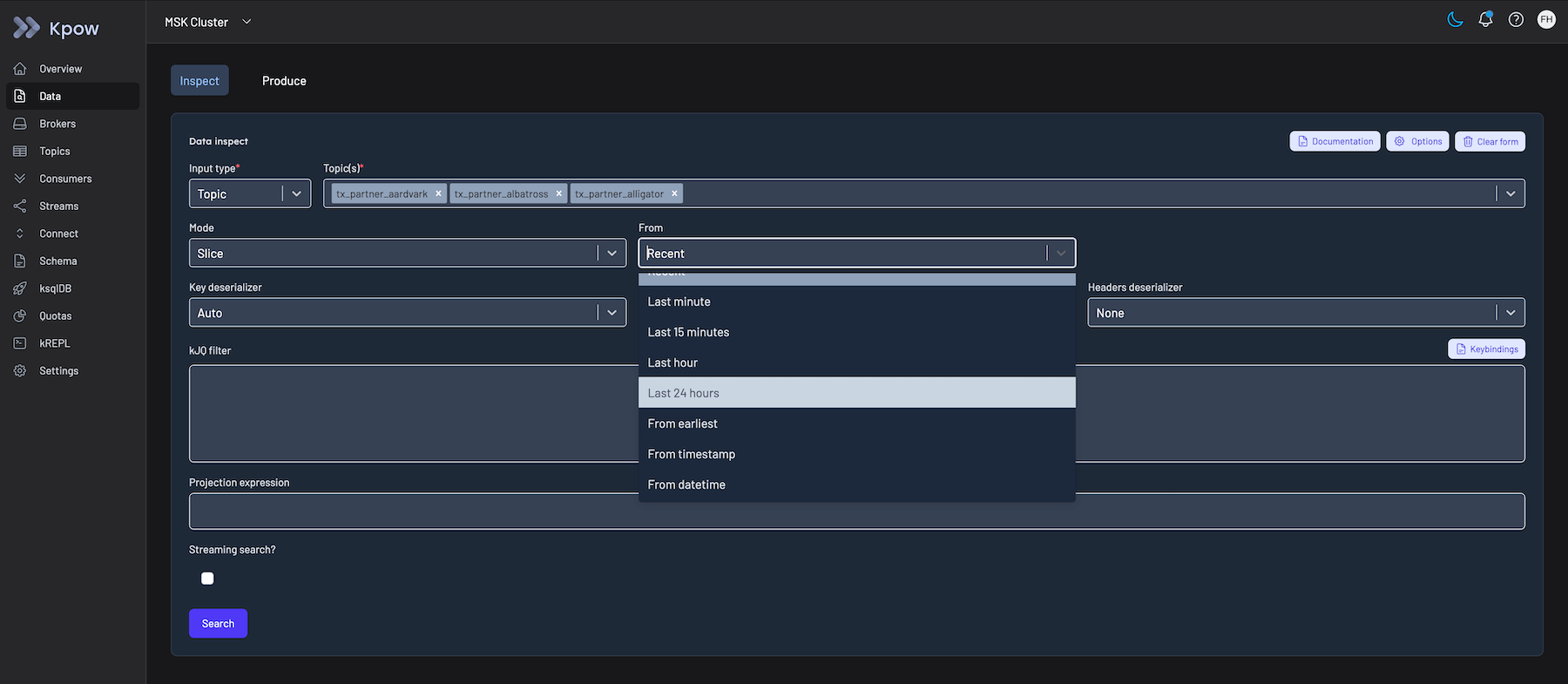
In this example we have chosen to search From: Earliest, meaning that Kpow will begin to search from the very start
of each topic in the query.
See Slice, Partition, or Key queries to understand
the full range of options for the From: field.
Form Fields Set
Mode: Slice
From: Earliest
When we click Search we can see that Kpow returns only the first 100 records as search results and then waits. We can
click Continue to read the next 100 records in the query.
See our Streaming search to learn how to change the number of results returned in a single query.
Search a specific time window
Example: Search a specific time window
We can set Kpow to only search for messages in a specific time window by changing to Mode: Bounded Window.
See Bounded window queries to
understand the options for Window start, Window end, and Bounded window durations.
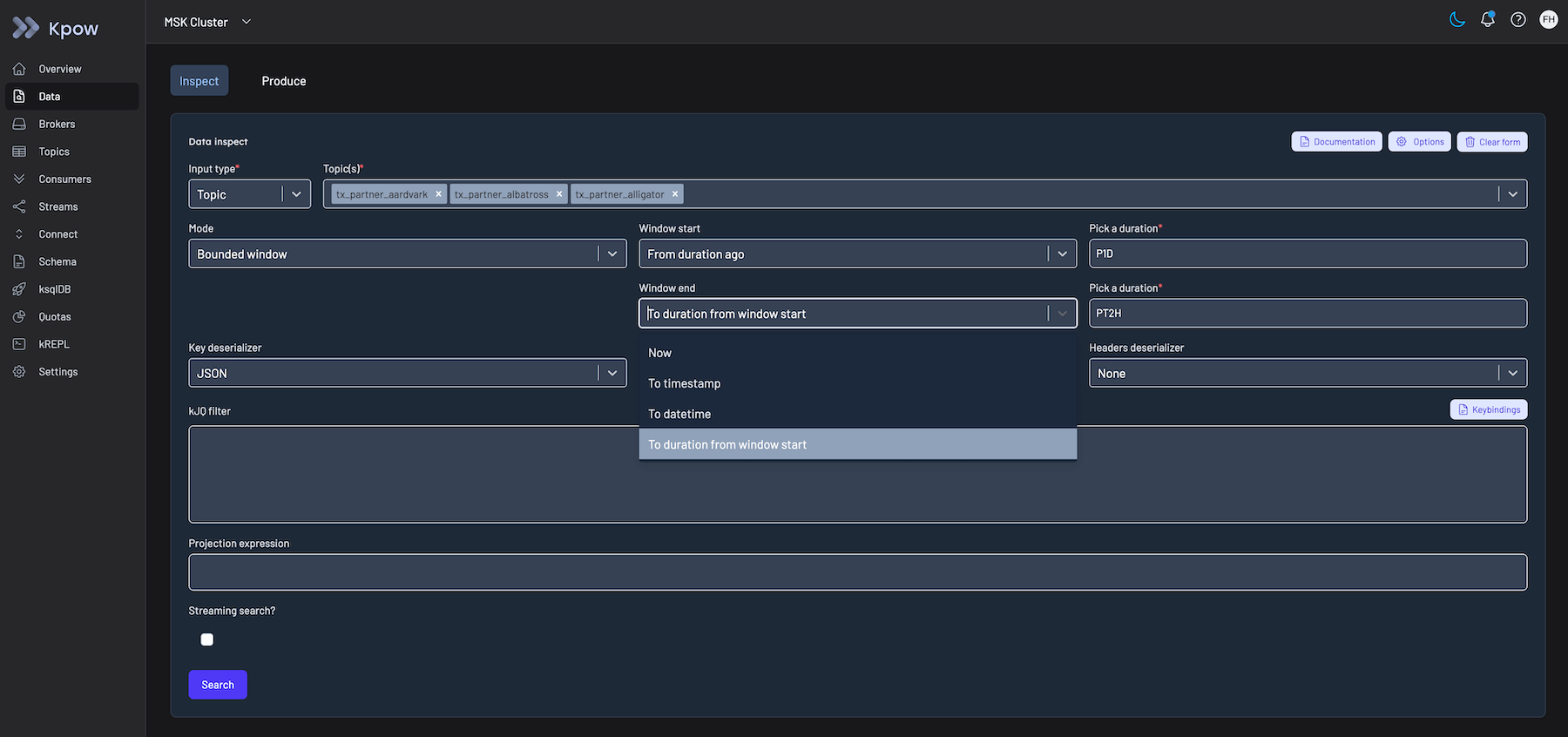
In this example we query multiple topics in a time window that starts P1D (one day) ago and runs for PT2H (two
hours).
Form Fields Set
Mode: Bounded window
Window start: From duration ago P1D
Window end: To duration from window start PT2H
When we click Search we can see that Kpow returns only the first 100 records as search results and then waits. We can
click Continue to read the next 100 records in the query.
See our Streaming search to learn how to change the number of results returned in a single query.
Searching by topic partition and offset
Example: Searching by topic partition and offset
We can set Kpow to search for messages in a specific topic partition from an offset by changing to
Mode: Partition
With Mode: Partition you may want to change the display order to By Offset and Descending as Kpow's natural sort order is By Timestamp and Ascending (new messages are shown first).
Search by exact key
Kpow offers an optimisation where you can search a single topic by exact key, in this case Kpow will determine the partition that contains the key and only search that partition.
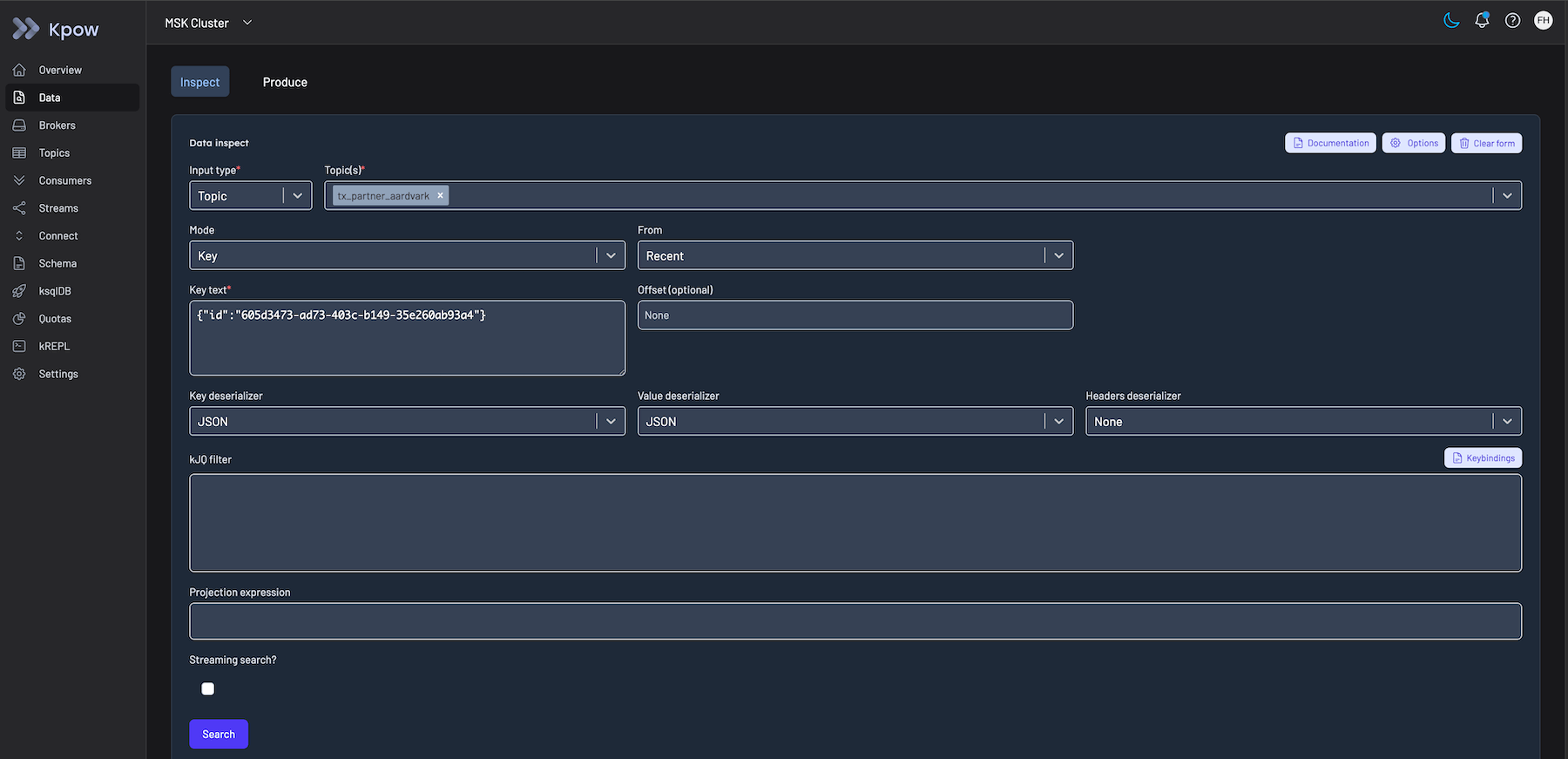
Exact key search works well with binary message formats like AVRO and Protobuf, but is less reliable with text formats like String or JSON where whitespace (or other small differences between search term and key) might cause Kpow to search in the wrong topic partition.
Getting the most out of search by exact key
To use search by exact key in Kpow, the records must be produced to the topic using the default partition strategy of Kafka. This ensures that search by exact key identifies the expected partition. Kpow uses the same default logic to determine which partition to search as Kafka does to determine which partition to write the key to.
Search by exact key does its comparison at the bytes level. If you are using a serializers like String or JSON, little differences (like a whitespace or a zero width space) between the key Kafka has written and the key Kpow is searching result in serialization of different bytes and result in different partitions. Serializers that produce binary data from text and schema like AVRO and Protobuf messages are not impacted by whitespace differences, and so can be more reliable when searching by key.
Looking at an example of the key "string" (no whitespace) and assuming 6 partitions
(-> (.serialize (StringSerializer.) "a-topic" "string")
      (Utils/murmur2)
      (Utils/toPositive)
      (mod 6)
      int)
=> 1
string serialization puts the key in partition 1.
For the key "string " (with a whitespace)
(-> (.serialize (StringSerializer.) "a-topic" "string ")
      (Utils/murmur2)
      (Utils/toPositive)
      (mod 6)
      int)
=> 5
string serialization puts the key in partition 5.
Alternative to search by exact key
You could also use the kJQ search to find exact keys, to search for the key "string" the kJQ query is .key == "string". If you know the partition, add this as a filter to cut down search time.