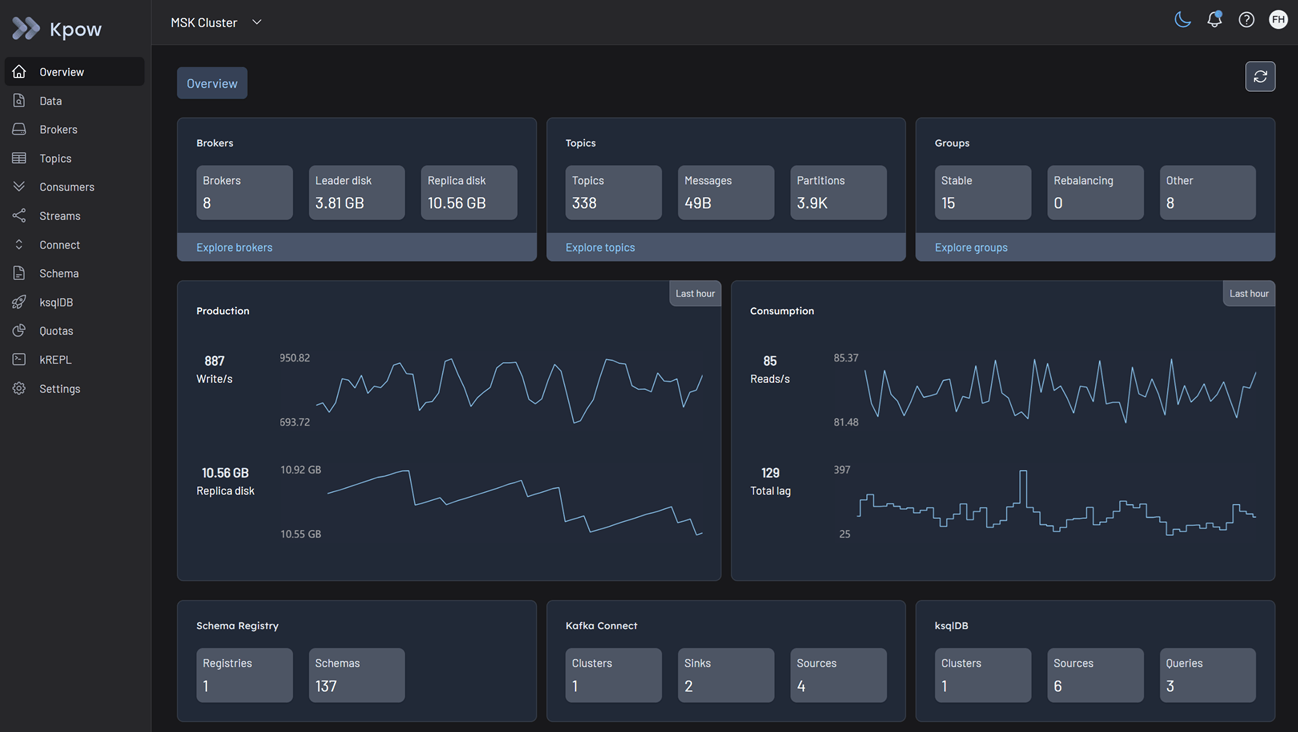
MSK cluster
Kpow fully supports both Amazon MSK (Managed Streaming for Apache Kafka) cluster types - Provisioned and Serverless. This flexibility allows you to use Kpow seamlessly regardless of how you choose to manage your Kafka infrastructure on AWS.
Cluster authentication
Amazon MSK supports multiple authentication mechanisms. You can configure Kpow to connect using the method that matches your cluster's security settings.
Amazon MSK Serverless exclusively uses IAM Access Control. Provisioned clusters support IAM, SASL/SCRAM, and mTLS.
IAM access control
Kpow offers first-class support for IAM Access Control, making it easy to connect securely using AWS credentials without managing additional username-password pairs or certificates.
To enable IAM authentication, configure Kpow with the following properties:
SECURITY_PROTOCOL=SASL_SSL
SASL_MECHANISM=AWS_MSK_IAM
SASL_JAAS_CONFIG=software.amazon.msk.auth.iam.IAMLoginModule required;
SASL_CLIENT_CALLBACK_HANDLER_CLASS=software.amazon.msk.auth.iam.IAMClientCallbackHandler
Note: This connects over port 9098. You may also need to specify SSL_TRUSTSTORE_LOCATION if your environment requires the Amazon root CA to validate broker certificates.
SASL/SCRAM
Amazon MSK supports SCRAM-SHA-512 authentication using credentials stored in AWS Secrets Manager.
Set the following connection variables, replacing the placeholders with the credentials associated with your MSK cluster:
SECURITY_PROTOCOL=SASL_SSL
SASL_MECHANISM=SCRAM-SHA-512
SASL_JAAS_CONFIG=org.apache.kafka.common.security.scram.ScramLoginModule required username="<SECRET_USERNAME>" password="<SECRET_PASSWORD>";
Note: This connects over port 9096.
Mutual TLS (mTLS)
For clusters configured with mTLS authentication, you must provide Kpow with the appropriate certificates (often generated via AWS Certificate Manager Private CA).
Configure your Kpow environment with the following:
SECURITY_PROTOCOL=SSL
SSL_KEYSTORE_LOCATION=/path/to/keystore.jks
SSL_KEYSTORE_PASSWORD=<KEYSTORE_PASSWORD>
SSL_KEY_PASSWORD=<KEY_PASSWORD>
SSL_KEYSTORE_TYPE=PKCS12
SSL_TRUSTSTORE_LOCATION=/path/to/truststore.jks
SSL_TRUSTSTORE_PASSWORD=<TRUSTSTORE_PASSWORD>
SSL_TRUSTSTORE_TYPE=PKCS12
Note: This connects over port 9094.
Access control (authorization)
How you authorize Kpow to read and manage Kafka resources depends entirely on the authentication method your cluster uses.
- If using IAM Access Control, authorization is managed by AWS IAM Policies.
- If using SASL/SCRAM or mTLS, AWS IAM policies do not apply to Kafka data-plane operations. Instead, authorization is managed natively using Apache Kafka ACLs.
Apache Kafka ACLs (for SASL/SCRAM & mTLS)
If your cluster uses SASL/SCRAM or mTLS, you must configure Apache Kafka ACLs to grant Kpow access to cluster resources. Also, Kpow provides robust support for managing these ACLs directly in the UI. See the ACL management documentation for details.
AWS IAM policies (for IAM access control)
If your cluster uses IAM Access Control, authorization is governed by AWS IAM policies attached to the identity running Kpow. Because Kpow is an engineering toolkit designed to manage and monitor clusters, it requires appropriate administrative privileges.
Below are example IAM policies you can attach to the identity running Kpow.
Option 1: Admin access to all MSK clusters in the region/account
This policy allows listing/describing all clusters and performing any data-plane action (kafka-cluster:*) on any cluster within the specified region and account.
{
  "Version": "2012-10-17",
  "Statement": [
    {
      "Effect": "Allow",
      "Action": "kafka-cluster:*",
      "Resource": "arn:aws:kafka:<REGION>:<ACCOUNT-ID>:cluster/*"
    },
    {
      "Effect": "Allow",
      "Action": [
        "kafka:ListClusters",
        "kafka:DescribeCluster",
        "kafka:GetBootstrapBrokers"
      ],
      "Resource": "*"
    }
  ]
}
Option 2: Admin access to a specific list of MSK clusters
This policy allows listing/describing all clusters but restricts the powerful kafka-cluster:* data-plane actions to only the specific clusters listed in the Resource array.
{
    "Version": "2012-10-17",
    "Statement": [
        {
            "Effect": "Allow",
            "Action": "kafka-cluster:*",
            "Resource": [
                "arn:aws:kafka:<REGION>:<ACCOUNT-ID>:cluster/<CLUSTER-NAME-1>/<GUID-1>",
                "arn:aws:kafka:<REGION>:<ACCOUNT-ID>:cluster/<CLUSTER-NAME-2>/<GUID-2>"
                // Add more cluster ARNs here as needed following the same pattern
                // "arn:aws:kafka:<REGION>:<ACCOUNT-ID>:cluster/<CLUSTER-NAME-3>/<GUID-3>"
            ]
        },
        {
            "Effect": "Allow",
            "Action": [
                "kafka:ListClusters",
                "kafka:DescribeCluster",
                "kafka:GetBootstrapBrokers"
            ],
            "Resource": "*"
        }
    ]
}
Option 3: Limited access to a specific MSK Cluster and its resources
This IAM policy grants scoped access to a specific MSK cluster, allowing topic-level operations, data read/write, and consumer group management.
{
  "Version": "2012-10-17",
  "Statement": [
    {
      "Effect": "Allow",
      "Action": ["kafka-cluster:*"],
      "Resource": "arn:aws:kafka:<REGION>:cluster/<CLUSTER-NAME>/<GUID>"
    },
    {
      "Effect": "Allow",
      "Action": [
        "kafka-cluster:*Topic*",
        "kafka-cluster:WriteData",
        "kafka-cluster:ReadData"
      ],
      "Resource": "arn:aws:kafka:<REGION>:topic/<CLUSTER-NAME>/<GUID>/*"
    },
    {
      "Effect": "Allow",
      "Action": ["kafka-cluster:AlterGroup", "kafka-cluster:DescribeGroup"],
      "Resource": "arn:aws:<REGION>:group/<CLUSTER-NAME>/<GUID>/*"
    }
  ]
}
MSK Serverless specifics
If you are deploying Kpow against an Amazon MSK Serverless cluster, you must be aware of specific service limits enforced by AWS.
To ensure Kpow operates correctly within these constraints, you must configure the following environment variable:
KAFKA_VARIANT=MSK_SERVERLESS
KAFKA_VARIANT: Ensures Kpow creates its internal topics with the constrained topic configuration properties and service limitations specific to MSK Serverless.
Limitations
The following functionality will be impacted due to Amazon MSK's own limitations:
- Kpow's internal audit log topic will only have a retention of 1 day.
- Broker disk metrics are not available in Amazon MSK serverless.
Quickstart
This command starts a Kpow container configured to connect to an Amazon MSK cluster using native IAM authentication. Note that if you are running this outside of an AWS environment (e.g., locally), you will need to provide your AWS credentials.
docker run -p 3000:3000 \
  --env BOOTSTRAP="[MSK_BOOTSTRAP_ADDRESS]:9098" \
  --env SECURITY_PROTOCOL="SASL_SSL" \
  --env SASL_MECHANISM="AWS_MSK_IAM" \
  --env SASL_JAAS_CONFIG="software.amazon.msk.auth.iam.IAMLoginModule required;" \
  --env SASL_CLIENT_CALLBACK_HANDLER_CLASS="software.amazon.msk.auth.iam.IAMClientCallbackHandler" \
  --env LICENSE_ID="<LICENSE_ID>" \
  --env LICENSE_CODE="<LICENSE_CODE>" \
  --env LICENSEE="<LICENSEE>" \
  --env LICENSE_EXPIRY="<LICENSE_EXPIRY>" \
  --env LICENSE_SIGNATURE="<LICENSE_SIGNATURE>" \
  factorhouse/kpow:latest
For brevity, Kpow authorization configuration has been omitted. See Simple Access Control to enable necessary user actions.
Once the container is running, navigate to http://localhost:3000 to access the Kpow UI.